?️ Installing Cisco Secure Client (AnyConnect VPN) on macOS — TU Wien
This guide walks you through installing and connecting to the Cisco Secure Client (AnyConnect VPN) for the Vienna University of Technology (TU Wien) on macOS.
? Requirements
- A valid TU VPN account
- Internet access
- macOS with admin privileges
? VPN Server Address
Use the following VPN gateway address when prompted:
vpn.tuwien.ac.at
? Supported VPN Account Formats
Depending on your role at TU Wien, your login format will vary:
- Employees:
username@tuwien.ac.at - Students:
eXXXXXXX@student.tuwien.ac.at - Special cases / external accounts:
username@vpn.tuwien.ac.at
? Installation Process on macOS
-
Open your browser and go to:
https://vpn.tuwien.ac.at -
Log in using your TU VPN credentials.
-
The site will detect your operating system and automatically guide you through installing the Cisco Secure Client (AnyConnect VPN).
-
After installation, find the Cisco Secure Client in your Applications folder or via Launchpad.
? Connecting to TU VPN
-
Launch the Cisco Secure Client.
-
In the VPN field, enter:
vpn.tuwien.ac.at -
Click Connect.
-
Choose one of the two available profiles:
? TU VPN Profiles Explained
? 1_TU_getunnelt
- Only traffic to/from TU Wien is routed through the VPN.
- DNS for
*.tuwien.ac.atis handled by TU nameservers. - Other traffic uses your ISP’s DNS.
? 2_Alles_getunnelt
- All traffic is routed through TU Wien.
- DNS is fully handled by TU nameservers.
- Required for access to:
- E-books, journals, databases
- Externally hosted but TU-licensed content
✅ You're Done
You can now connect to TU Wien’s VPN with Cisco Secure Client on macOS.
If you run into trouble:
- Verify your account is authorized
- Check internet/firewall settings
- Avoid conflicts with other VPN clients (e.g. PET VPN)
Linux
1. Install the necessary software (one-time setup):
sudo apt install openconnect network-manager-openconnect network-manager-openconnect-gnome
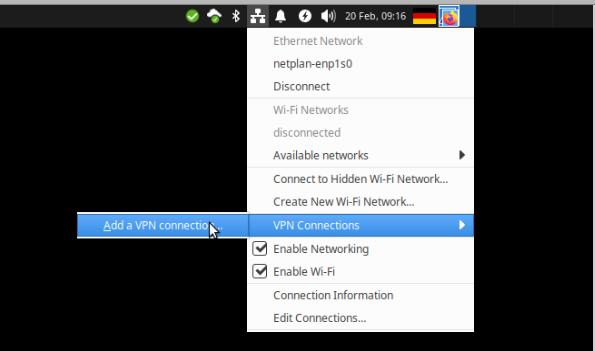
2. Set up the VPN connection in Network Manager (one-time setup):
Click on the network icon > VPN Connections
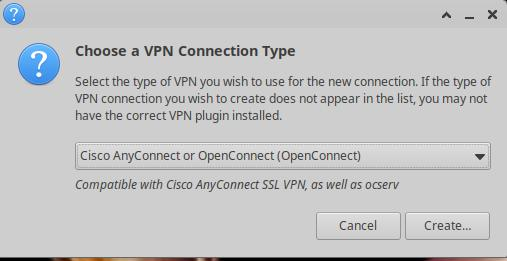
3. Choose the connection type (one-time setup):
Select Cisco AnyConnect or OpenConnect
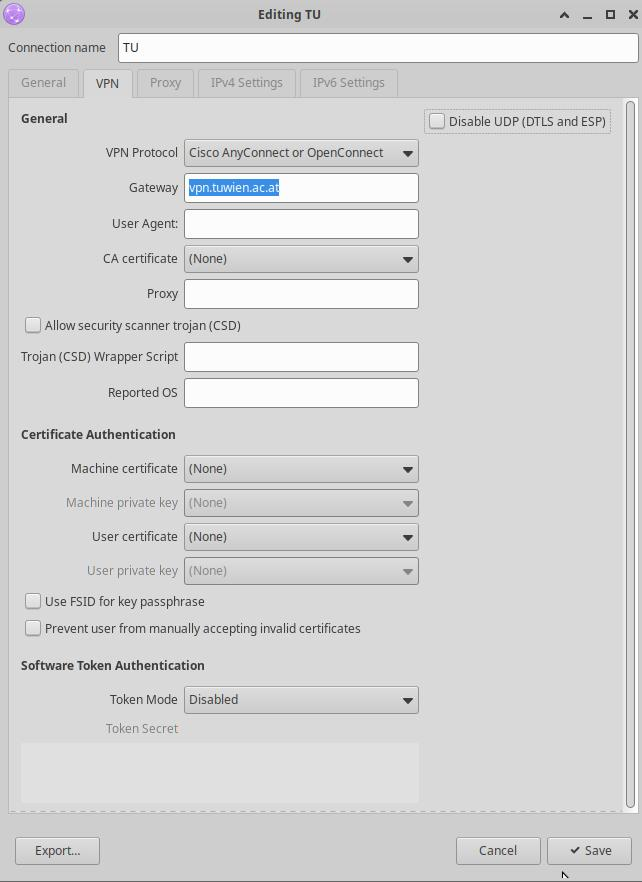
4. Configure the gateway and save the settings (one-time setup):
Set the Gateway to:
vpn.tuwien.ac.at
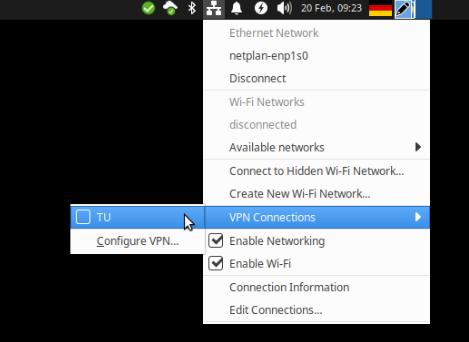
5. Connect to the TU Wien VPN
6. Enter your username and password:
First, click Connect next to VPN Host, then enter your username and password.
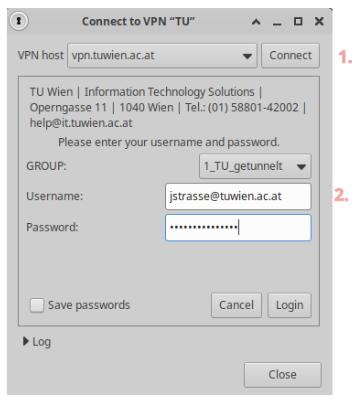
Your username is your short TU Wien username followed by @tuwien.ac.at.
For example, my username is:
jstrasse@tuwien.ac.at
Then, click Login.
7. Password Reset
If you have forgotten your password, you can reset it here:
Password Reset for Employees
(under Network Account - WLAN, VPN)
That's it!