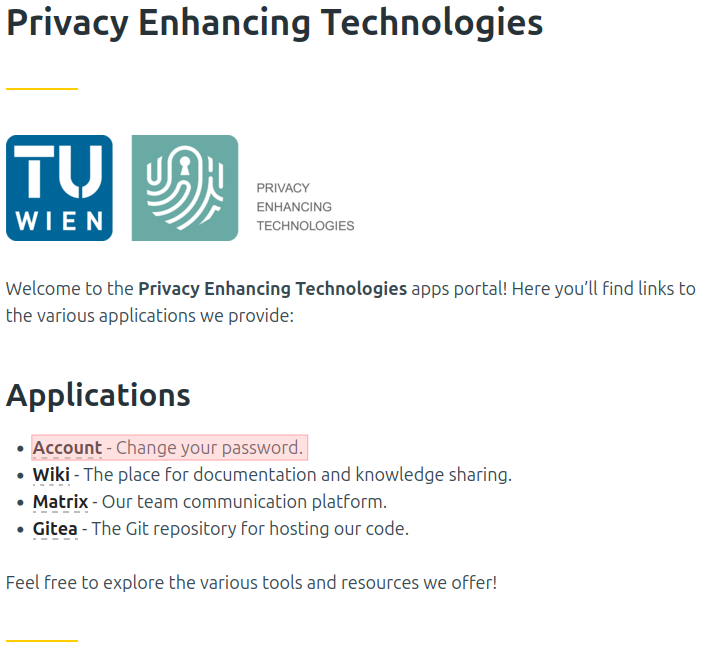
Connect to the application portal page at https://apps.pet and select the first menu item, Account.
Enter your TU login name in the designated field. This is usually the first letter of your first name followed by up to seven characters of your last name, depending on its length.
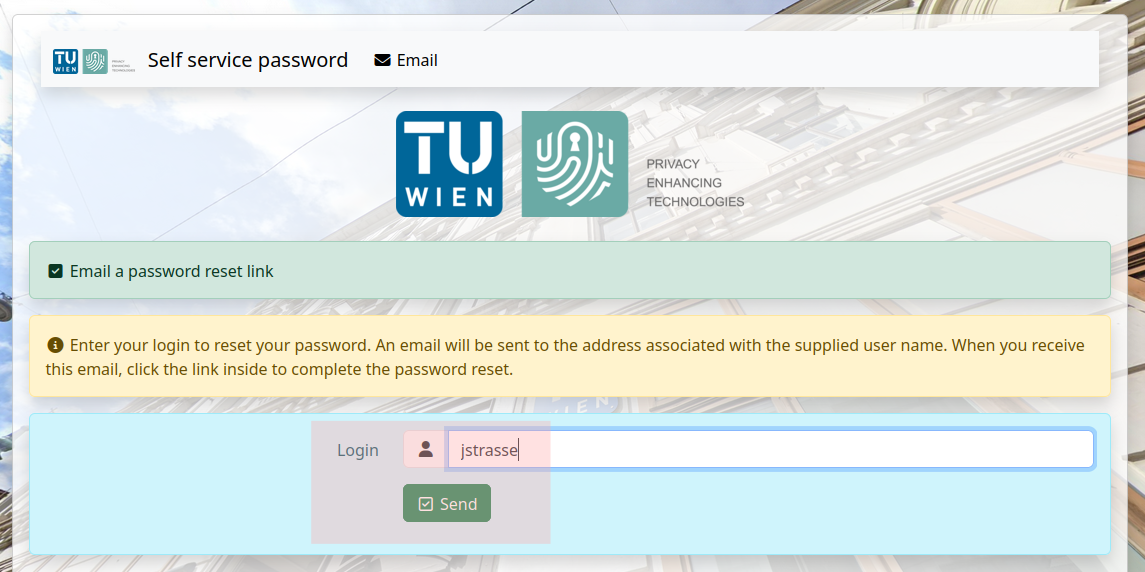
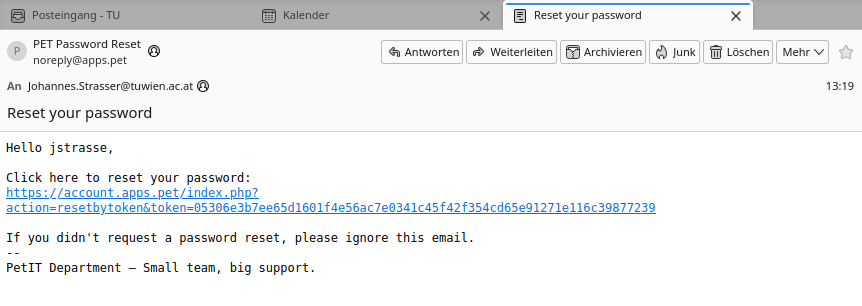
A link to reset your password will be sent to the email address we have on file for you.

If you have received the email, click on the link to reset your password. If you do not receive an email, please contact PET support.
Choose a secure password and enter it into the password reset web form. Then click "Send".
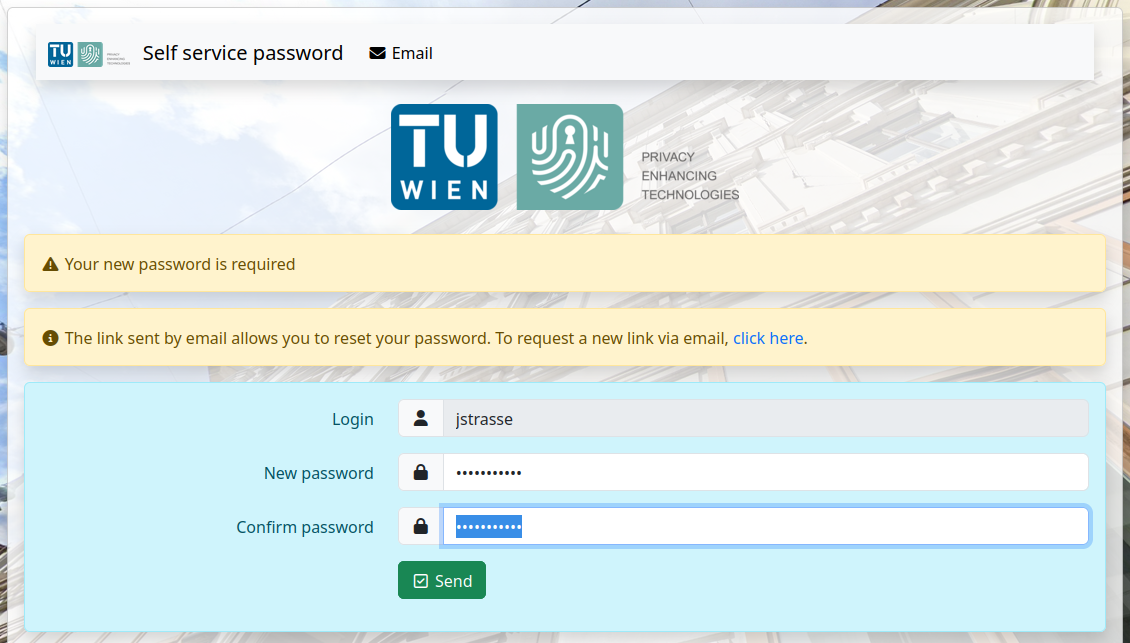
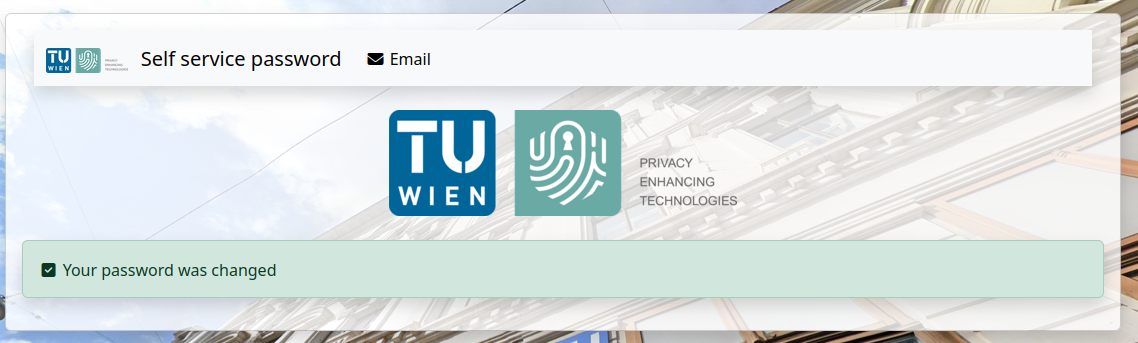
Your password will now be changed.
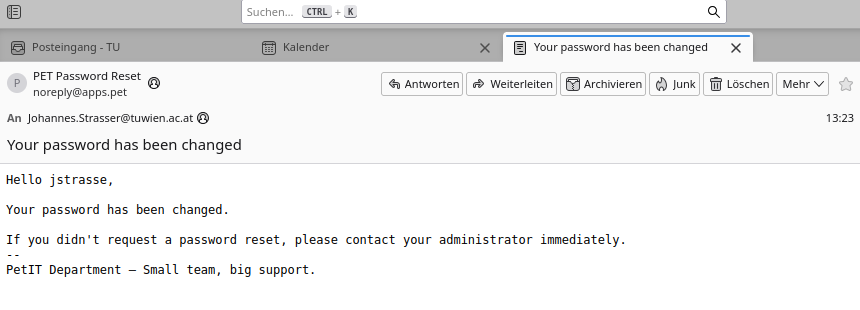
You will receive an email confirming the password change.
You can now use the apps available to you. It's best to return to https://apps.pet.